
Workspace comfort
Lighting, Glare, and Viewing Distance
Glare, low contrast, and a screen set too close are three of the most commonly cited triggers of everyday eye fatigue. Here is what to change, and in what order.
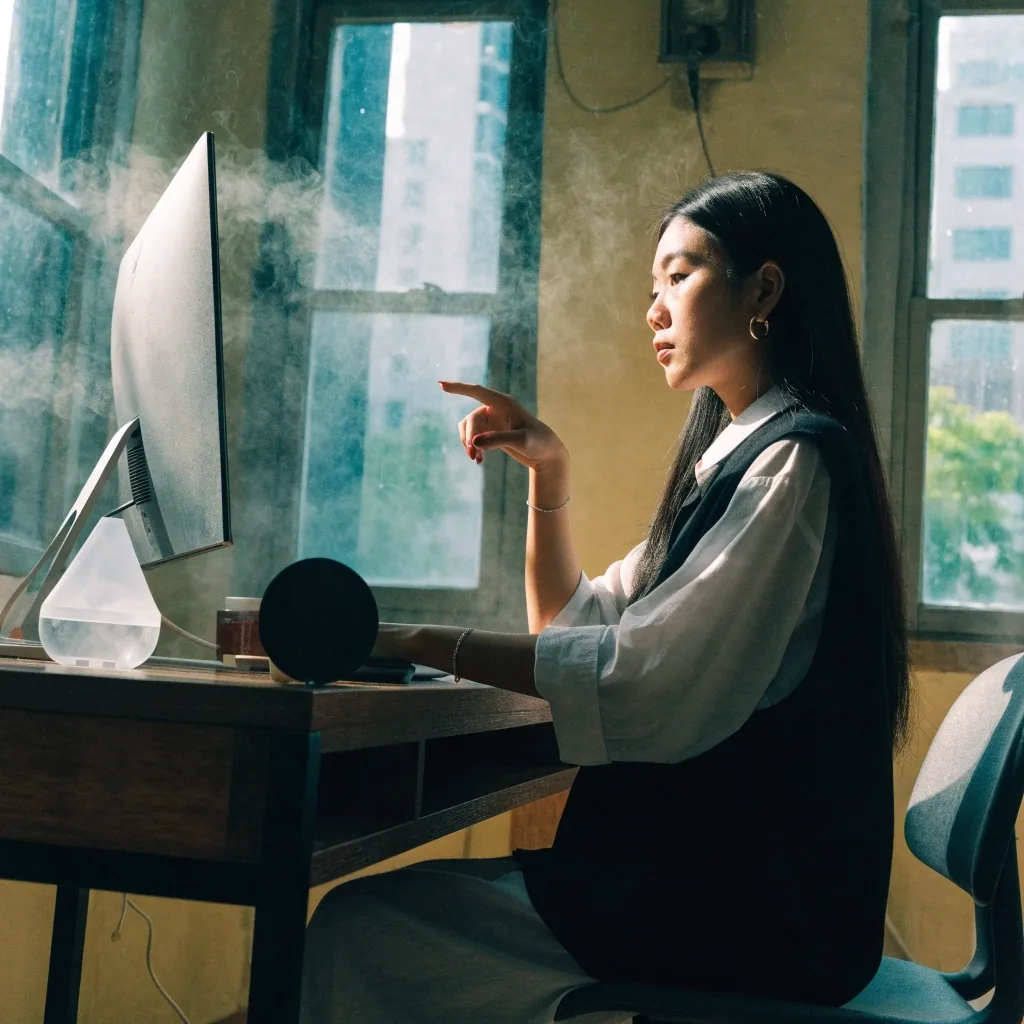
Three checks, a few minutes, most of the room fixed.
Sit as you normally would, look at the screen, and answer three questions about reflection, leaning, and brightness.
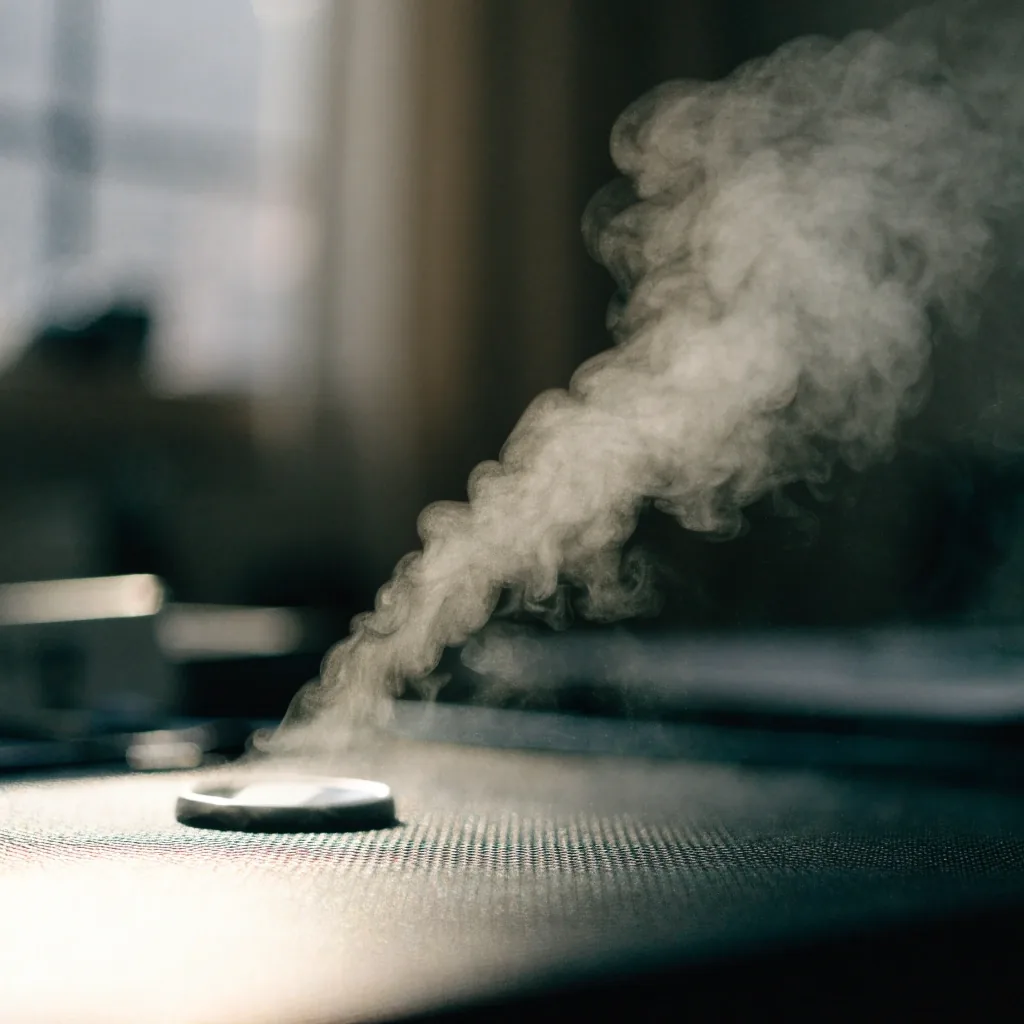
Light first, settings second
Find the Light Before You Change Anything
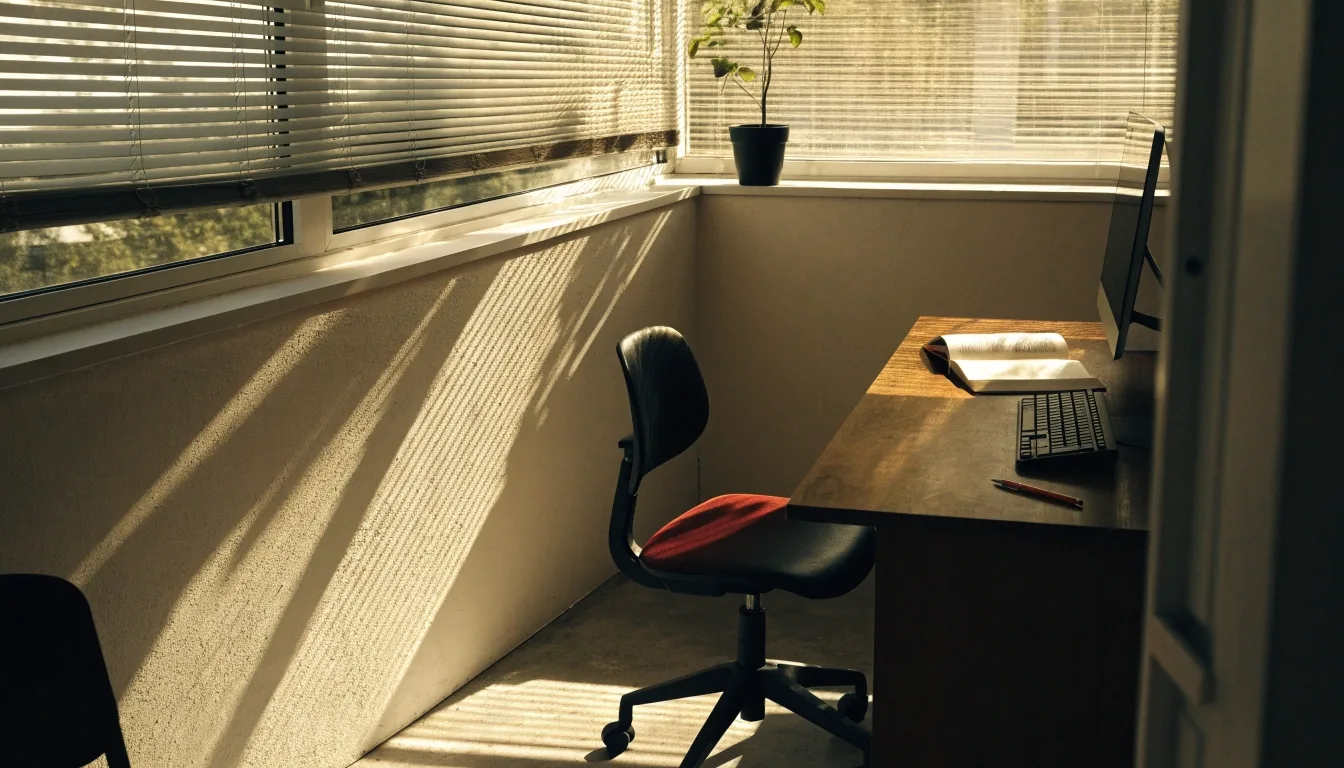
Start by noticing where light comes from in your room. A window behind your monitor creates a bright background your eyes must fight all afternoon, and a window in front creates glare on the screen itself. Overhead lights that reflect in a glossy display do the same thing. Simply repositioning the desk or the screen so light arrives from the side, rather than directly behind or in front, removes a large share of the problem at no cost.
In practice this takes one walk around the room. Stand behind your chair, look at the screen the way you normally face it, and note every bright surface you can see: the window, the ceiling fixture, the white wall opposite. If any of them are reflected in the panel, that reflection is landing on your eyes too. Move the screen, move the chair, or move the light. A screen positioned at a right angle to the window — light arriving over your shoulder — is the classic arrangement precisely because it keeps the bright source out of both the panel and your line of sight.
Where the light should come from
- Side light — over your shoulder, off the screen. The default you want.
- Behind the screen — your eyes work against a bright background.
- In front of the screen — glare lands on the panel and bounces back.
- Directly overhead — reflected hotspots in glossy displays.
Glare and How to Cut It
Glare is light bouncing off surfaces into your eyes, and it shows up in the real world and on the screen. A matte screen filter scatters reflections instead of mirroring them, which helps most in bright rooms. Blinds, curtains, or moving a desk lamp also work. If you cannot change the light, change the surface: a matte finish does more for a screen glare problem than any display setting.
Before buying anything, test the cheap fixes in this order. Close the blinds a little and watch the reflection shrink. Turn the screen away from the lamp by a few degrees. If a matte filter still seems necessary, borrow one and check it in the same room at the same time of day — a filter that helps at noon may do nothing at nine in the evening.
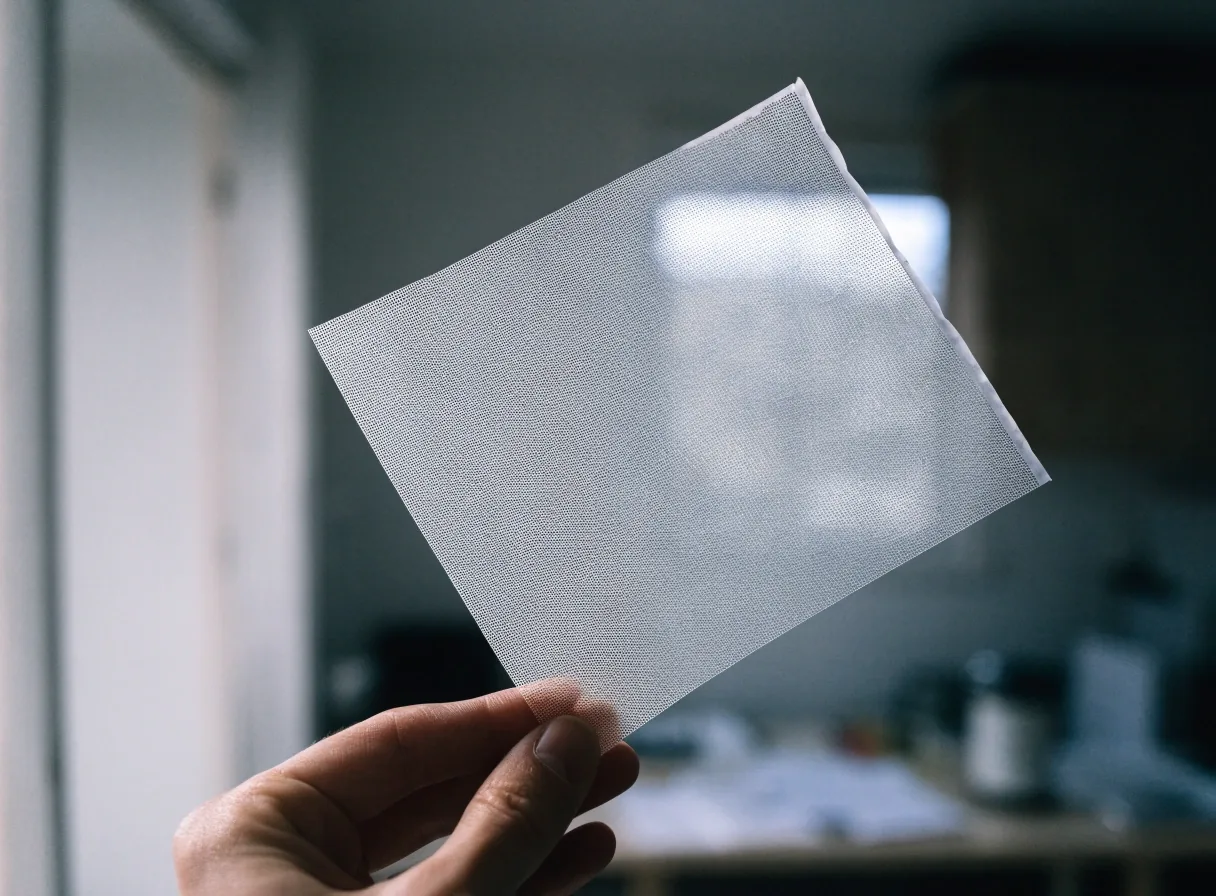
Task lighting, aimed where you read
Task Lighting Beats a Bright Ceiling
A bright overhead light is often more than the room needs and a common source of screen reflections. Task lighting, aimed at the material you are reading rather than at the screen, gives you adequate light where it is useful and keeps the display free of reflected glare. Aim the beam at the page or the keyboard, not through the space between your eyes and the panel.
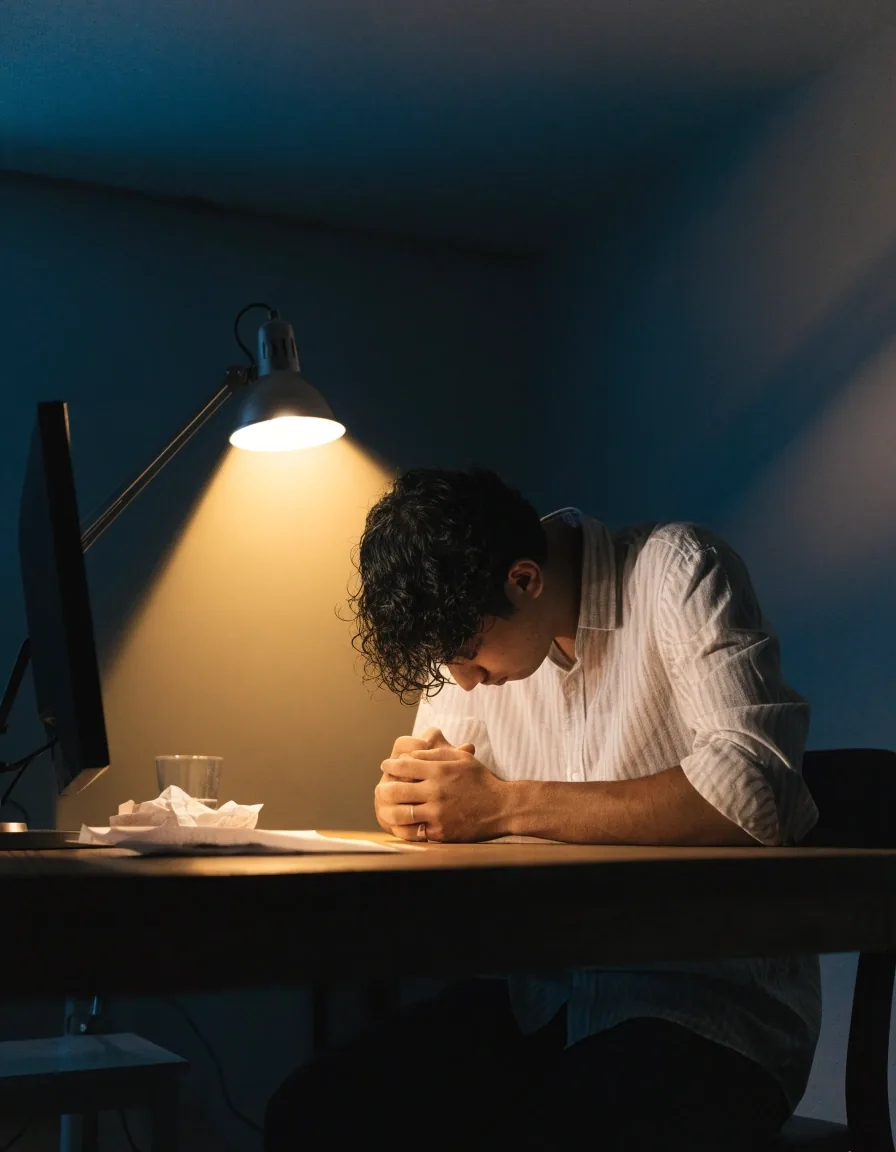
For evening work, keep the room dimmer than the screen rather than darker than it. That prevents the contrast mismatch which tires the eyes: a small pool of light where you need it, and a gentle wash on the wall behind the monitor so the panel never floats in a black hole.
A note on dry air
Air-conditioned rooms in Jakarta are dry, and dry air makes the surface of the eye unstable. If the lighting fixes above still leave you blinking hard at 4pm, air humidity is the next thing to test. A humidifier in the room, a small bowl of water on the desk, or breaks away from the direct vent can all change how the day feels by the last hour of work.
Contrast is a readability question
Contrast Is About Readability
Low contrast between text and background makes the eye work harder to identify each letter, and it is listed among the triggers of digital strain. Raising text contrast, increasing font size, and avoiding light gray text on white backgrounds all reduce that effort. If a website or app you use daily has poor contrast, most devices offer a high-contrast or bold-text setting that applies system-wide.
Raise text contrast
Dark letters on a light background, or the reverse. Skip mid-tone pairs.
Increase font size
A larger body size cuts the effort per letter. Most apps accept a global bump.
Avoid light gray on white
The single most common low-contrast trap on modern interfaces.
Use high-contrast or bold text
System-wide setting on most phones, tablets and laptops. Turn it on once.
Match display gamma
A dim ambient room with a bright display causes a mismatch your eyes must bridge.
The right brightness is the one that does not stand out against the room.
A screen much brighter than its surroundings, or much dimmer, forces your eyes to adapt repeatedly across the day. Match screen brightness to the ambient light instead: brighter in a bright room, lower in the evening. Automatic brightness does this for you on most phones and laptops if you let it, and it is worth leaving switched on even if it occasionally gets the level slightly wrong.
Viewing Distance and Height
Holding a phone or laptop too close is a well-documented contributor to digital eye strain, and improper viewing distance is easy to build into a habit without noticing. A useful default is an arm's length for a desktop monitor, with the top of the screen around or slightly below eye level so you look down a little. Phones creep closer during long reading sessions, so setting a larger font size is often the simplest way to keep the device at a comfortable distance.
If you are leaning forward to read, that is your cue: enlarge the text instead of moving closer. If you are squinting, the same. The distance that works is the one where you can read comfortably with your back against the chair and your shoulders relaxed, not the one where your head is level with the panel. For a phone, the simplest test is whether you can hold it in one hand with your elbow resting at your side — if you have to bring it up to eye level, the display is doing too much work for its size.
Three checks, three fixes
A Quick Setup Check
If you see a reflection
Sit as you normally would and look at the screen. If a window or a light shows up on the panel, move the screen or the light. Either one works — the goal is to break the straight line between the source, the surface, and your eyes.
If you are leaning in
Enlarge the text instead of moving closer. A larger body size costs nothing and holds your distance at a comfortable reach for the whole session, not just the first ten minutes.
If the screen stands out
Adjust brightness so the panel and the wall behind it look like they belong to the same room. Three checks, a few minutes, and you have addressed the most common physical causes of everyday strain.
When the Room Is the Problem
Some spaces are hard to fix: a shared office with fixed lighting, a desk facing a window, a small room with one overhead fixture. In those cases, combine what you can control. A matte filter handles glare you cannot move, lowered brightness handles contrast, and a humidifier handles the dry air that often comes with air-conditioned offices. Stacking small adjustments is a legitimate strategy.
Stacked fixes also compound in a useful way: cutting glare lets you raise text size, which lets you hold the screen farther away, which reduces the strain on both the eyes and the shoulder muscles bracing the neck. The order matters less than getting one item done and seeing whether the room feels different before adding the next.
Stacking what you can control
- Fixed office light — matte screen filter for glare you cannot reposition.
- Desk facing a window — blinds partly closed and brightness matched to the pane.
- One overhead fixture — a small task lamp turns it into a floor instead of a floodlight.
- Air-conditioned room — a humidifier or a bowl of water nearby for the dry eye half.
Short answers to common questions
Answers about glare, brightness, and distance
Do matte screen filters really help?
They help mainly with glare, because they scatter reflections rather than mirroring them. If your main problem is dry eyes or near focus rather than reflections, a filter will do little.
Is it better to work in a bright or dim room?
Neither extreme. The room should be lit well enough that the screen does not stand out against it, and light should come from the side rather than directly behind or in front of you.
How close is too close to a screen?
If you have to lean in or squint, it is too close for comfort. Arm's length is a reasonable default for a desktop, and larger text lets you hold a phone farther away.
A comfortable desk is an ordinary desk with the light in the right place.
Fixing the lighting, glare, and viewing distance that surround your screen costs little and helps across the whole working day. If you are ready to look at the rest of the picture — how to break up screen time, and what to do when dryness rather than glare is the problem — pick a next chapter.